Navigation
Once your route is confirmed, Offload gives you turn-by-turn navigation that sticks to your permitted route. Not just the fastest way, the right way.
New to routing? See Route planning for how routes get planned and sent to your phone.
Start your trip
Open the load you're running and kick off navigation.
- 1
Open your load
From My Schedule, tap the load you're running. It opens on the Dispatch tab. - 2
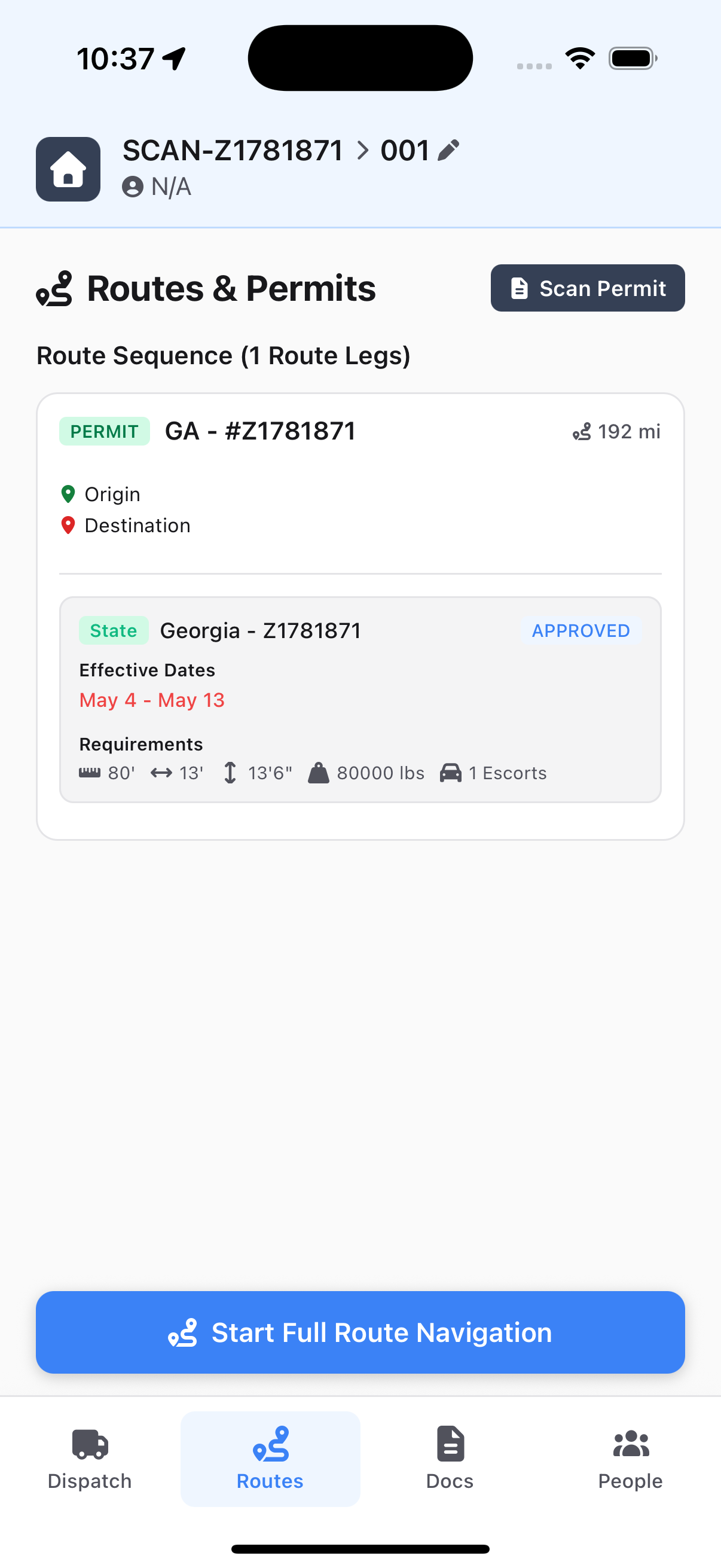
Go to the Routes tab
Tap the Routes tab at the top of the load screen. - 3
Tap Start Full Route Navigation
Scroll to the bottom of the Routes tab and tap the button. - 4
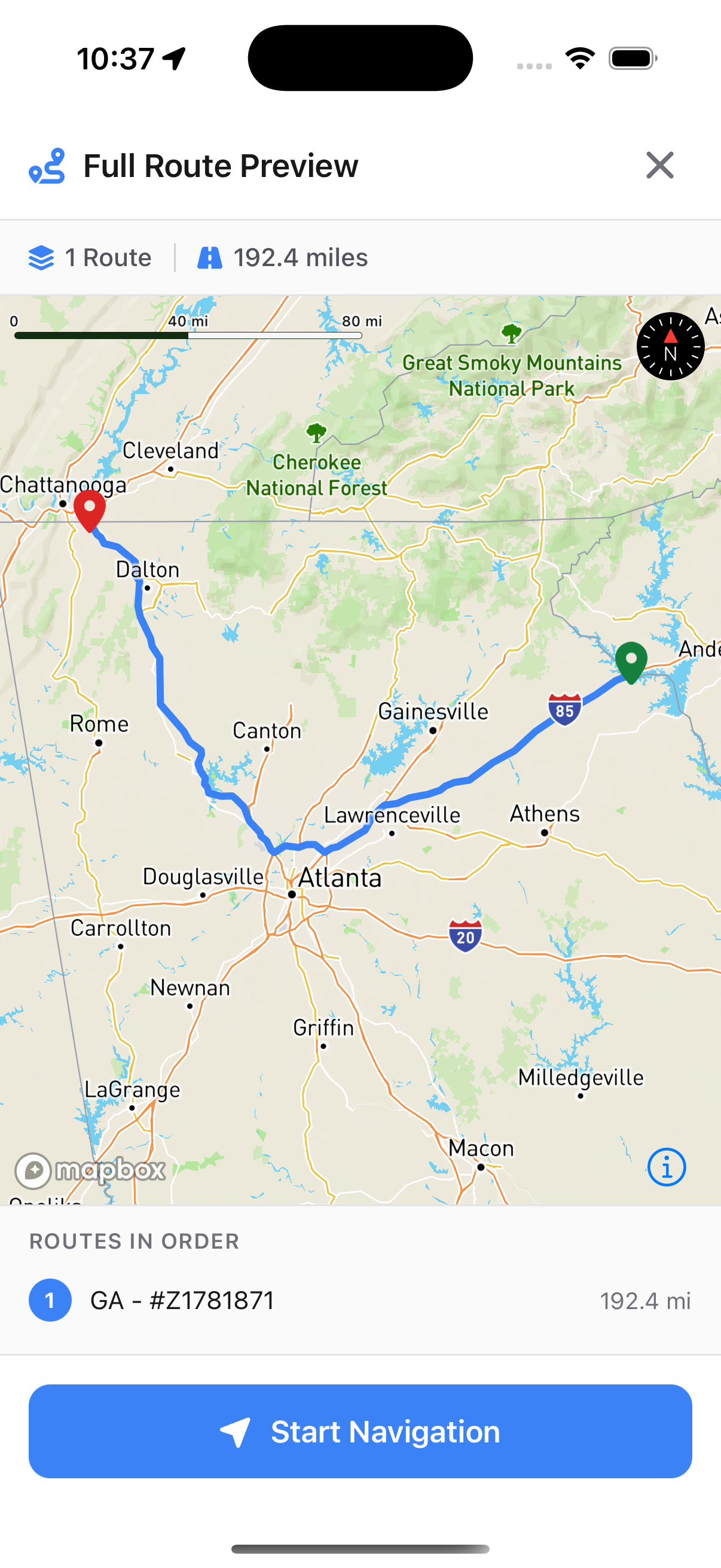
Check the preview
You'll see a Full Route Preview: how many routes make up the trip, the total miles, and the full path on the map. Give it a quick look. - 5
Tap Start Navigation
When it looks right, tap the blue Start Navigation button and roll.
What you'll see while driving
Once you're rolling, the screen switches to a map with turn-by-turn directions. Voice prompts call out your turns so you can keep your eyes on the road.
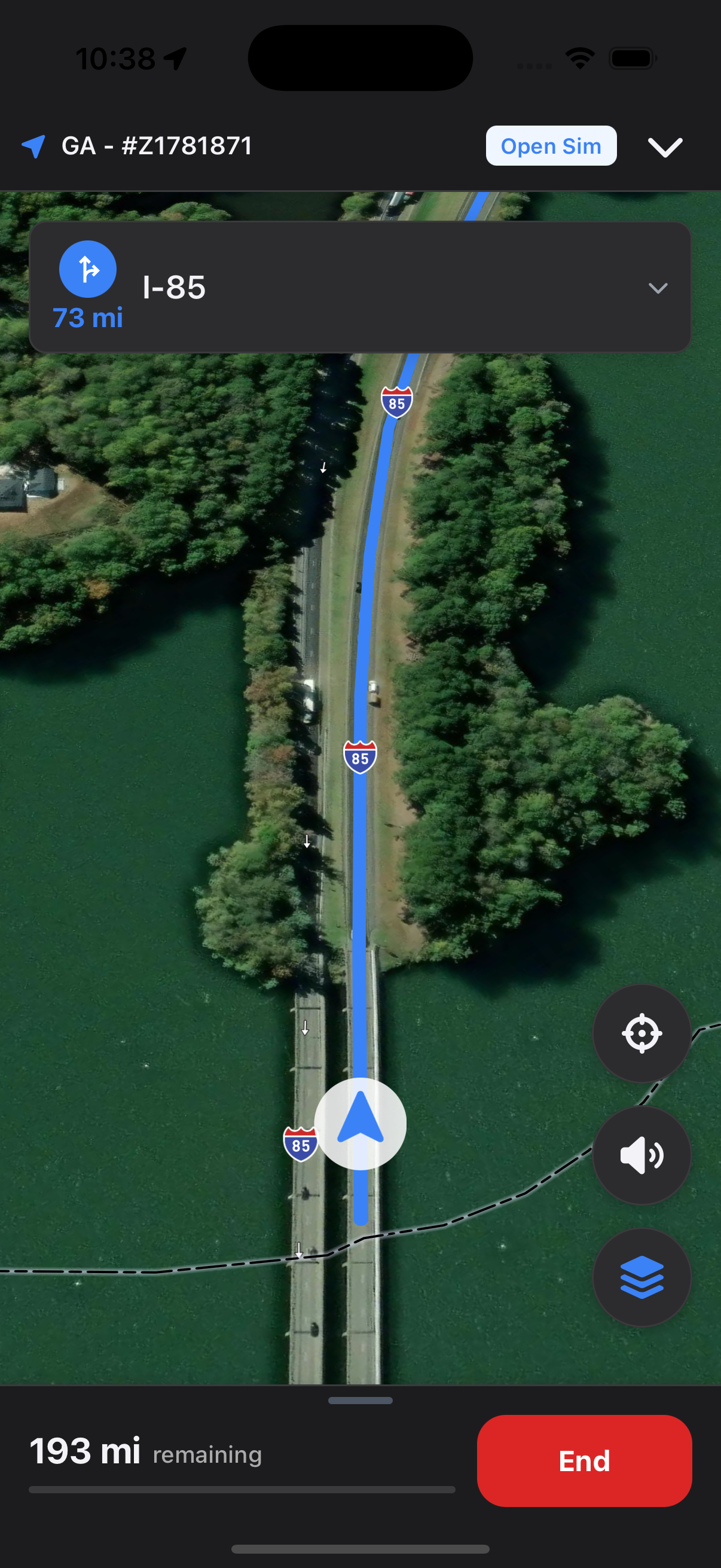
- Top bar - the name of the route you're running. For permit routes it's the state and permit number (for example "GA - #12345"). For other routes it's "Planned Route", "Planned Route 2", and so on.
- Next turn - the road and distance to your next turn (for example "I-85, 73 mi").
- Map - your truck on the road, route highlighted in blue.
- Remaining - distance left in the trip, shown at the bottom.
- End button - tap End at the bottom to stop navigation when you arrive.
Curfews
Some permits have curfews: hours you're not allowed to run (like rush hour, or nighttime on certain roads). Offload knows them from your permit and warns you while you drive. As you get close to one, a banner appears and a voice prompt calls it out. The curfew also shows up in your turn-by-turn directions, so you can see it coming.
If you go off route
If you drift off your permitted route, Offload tells you. Here's what to do.
- 1
Don't panic
A short detour for gas or a rest stop usually isn't a problem. - 2
Get back on route
Return to your route as soon as it's safe. - 3
Can't get back? Call dispatch
Road closure, accident, or detour? Call dispatch before going much further. They can update the permit or the route.
If navigation looks wrong
A turn that doesn't feel right, a road that looks too tight, a bridge you're worried about?
- 1
Pull over somewhere safe
A truck stop, a wide shoulder, a pull-off. - 2
Stop navigation
Tap End. - 3
Look at the route
Open the load and tap the Routes tab to see the path on the map. - 4
Call your dispatcher
They see the same route you do and can help, or update it from the web.
Quick reference
| Thing | What to do |
|---|---|
| Start a trip | My Schedule, tap load, Routes tab, Start Full Route Navigation, Start Navigation |
| Next turn | Shown at the top of the map |
| Stop nav | Tap End at the bottom |
| Curfew warning | Park somewhere safe and wait |
| Off-route alert | Get back on route, or call dispatch |
| Something looks wrong | Pull over, call dispatch |
Questions? Email support@letsoffload.com or call your dispatcher.