Permit tracking
The Permits page (/permits) is one list of every jurisdiction your loads pass through and where its permit stands. One row is one permit obligation: a state (with its local jurisdictions rolled up) on one load's route.
This page is about tracking the obligations. For getting a permit into Offload and turned into a route, see Permit management.
A saved-views workspace
The Permits page is a Saved Views workspace, like Loads and Projects: filter, group, sort, choose columns, export to CSV, and save shapes as views.
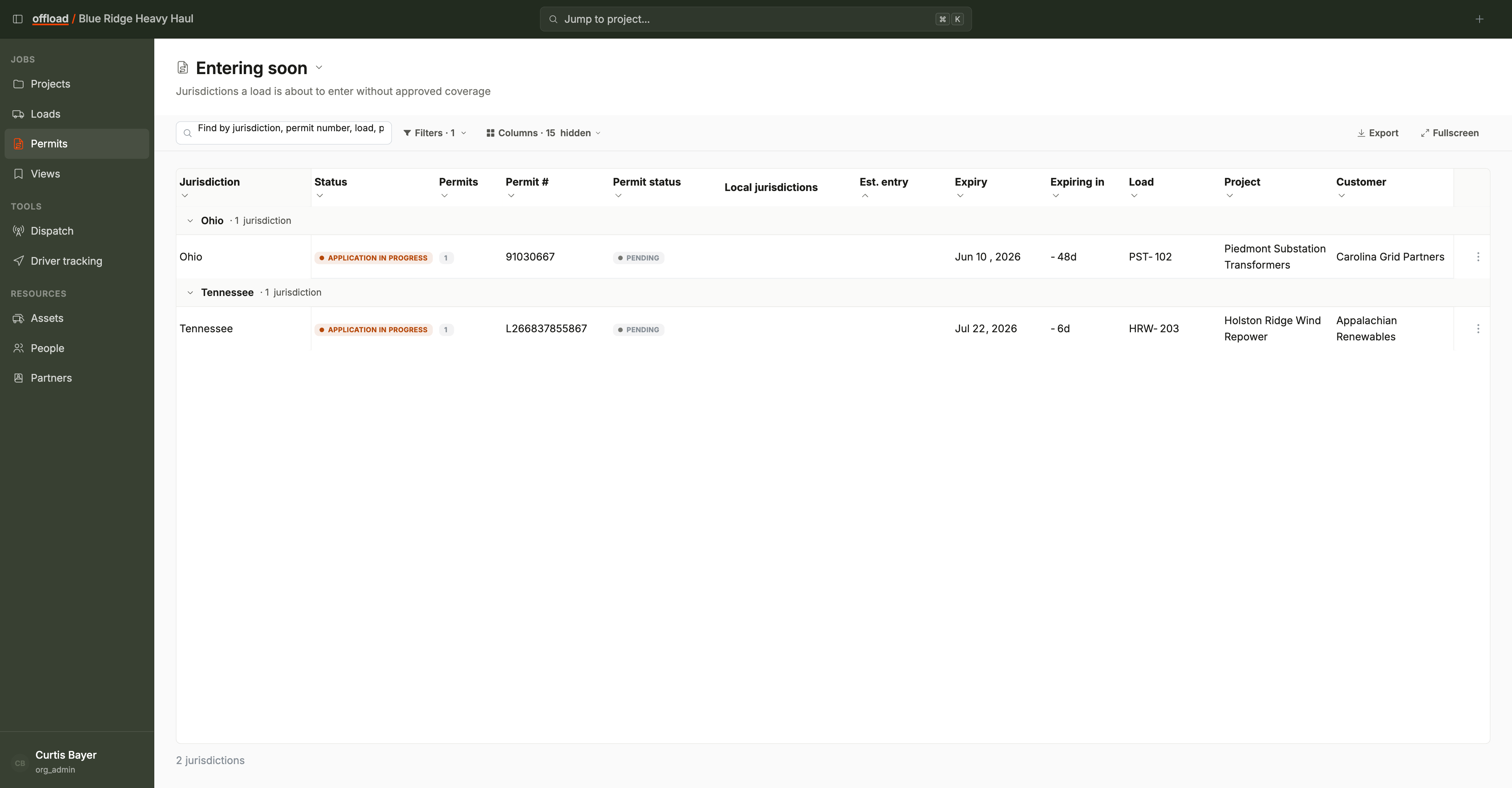
It opens on a default view called Entering soon: jurisdictions a load is about to enter without approved coverage, grouped by jurisdiction and sorted by estimated entry. It's the "what needs attention" list; clear it and you're covered.
What a row shows
- Status - the obligation's state: Permit needed, Application in progress, Update required, Needs review, Permit approved, Annual permit, or Legal load.
- Permit details - the permit count, primary permit number, its own status, effective and expiry dates, and an "expiring in" countdown.
- Local jurisdictions - city and county permits stacked under the state row.
- Trip context - estimated entry and exit, distance in the jurisdiction, and the load, job, and customer it belongs to. Superload and annual flags have their own columns.
Working the list
- Update a status from the row menu ("Update state status") without leaving the list.
- Open the load by clicking the row: it lands on the load's Routing & Permits tab, where the full permit and route work happens.
- Filter to your slice: by status, customer, and estimated entry by default, with many more fields available.
- Export the current view to CSV for a report.
Shared loads
Loads shared with you show their permit obligations here too, when the share includes permit and routing access. Everything job-related on those rows (job number, customer, project manager) reflects your own filing of the shared load, not the owner's.
The Permits page follows route permissions: anyone who can read planned routes can open it. There's no separate feature to enable.