Resources
The Resources section is where you manage everything you dispatch with: your fleet, your people, and the companies you work with. It has three homes in the left navigation: Assets, People, and Partners.
New to this area? Manage your fleet, team, and partners is the step-by-step. Common questions live in the Resources FAQ.
This layout is rolling out per organization. If your left rail still shows Contacts and Sharing instead of Assets, People, and Partners, your organization is on the earlier layout. Contact support@letsoffload.com to switch.
How it works
- 1
Keep your roster current
Add trucks, trailers, and equipment on Assets. Add drivers, operators, and coordinators on People. Add the companies you work with on Partners. - 2
Type your resources
Give each asset and person a resource type (such as Crane operator or Lowboy). Types are what jobs and phases ask for when they list requirements. - 3
Check availability
Use the Availability tab on Assets or People to see who is free, who is on a load, and who is committed on site, day by day. - 4
Fulfill work from Dispatch
Site work phases and load dispatches ask for resources by type. You fill those slots on the Dispatch board, drawing from the roster you keep here.
The three homes
- Assets - every truck, trailer, and piece of equipment: your in-house fleet plus external assets owned by partner companies.
- People - everyone you work with: your internal team plus external individuals at partner companies.
- Partners - the companies you work with: your directory, your connections, and the loads you have shared.
The split is simple: assets and individuals live on Assets and People, whatever company owns them. Companies live on Partners.
Internal and external in one place
Assets and People show your own resources and external ones side by side, with an ownership filter (All / Internal / External):
- Internal - owned by your company or one of your branches.
- External - owned by a partner company (a carrier, vendor, or customer).
This is how you dispatch a partner's driver or trailer on your own job while keeping one roster.
Availability
Assets and People each have an Availability tab: a day-by-day grid of your resources over a date window you pick (up to 45 days at a time).
- Each type group shows a daily count, such as 3/5 heavy-haul tractors free.
- A blue band means the resource is on a load that day.
- If your organization uses site work, on-site bands show when a resource is committed to a phase, available on site, or scheduled to mobilize.
- The grid starts on Internal resources; switch the filter to see external ones.
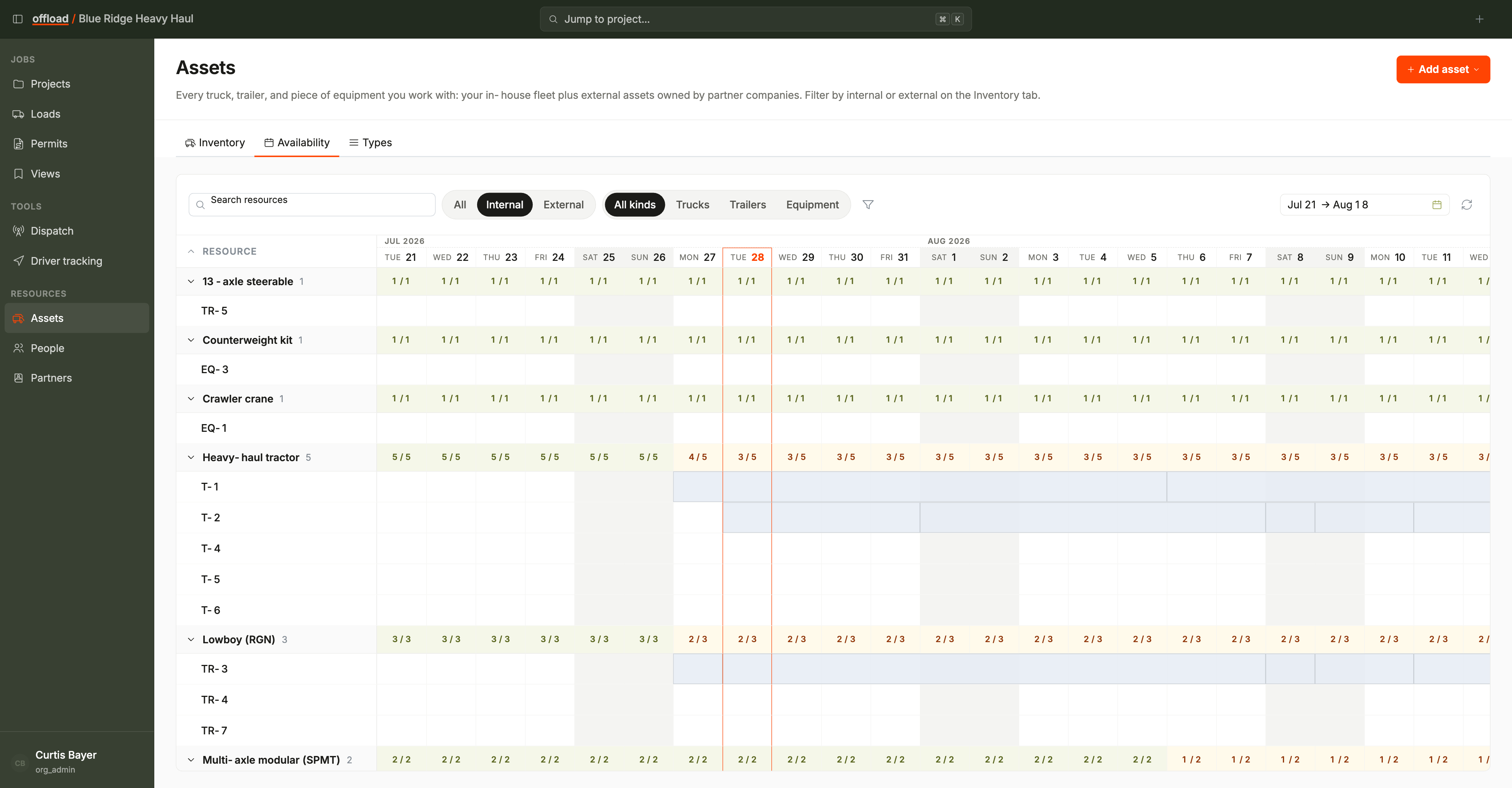
Each tab has its own URL. /assets?tab=availability opens the grid directly; bookmark it or share it with your team.