Getting started
Offload turns a fresh organization into a working team in a few steps: an admin sets up the company profile, adds each teammate, sends them an invitation, and drivers install the mobile app. After that, the team can start managing loads, routes, and permits.
How it works
Onboarding moves through four milestones, from an empty org to a team that is ready to haul.
- 1
Set up the company
The first admin fills in the organization profile once: name, logo, address, and contact details. - 2
Add people
An admin adds each teammate (driver, dispatcher, admin) on the Users page and enters their name and email. - 3
Send invitations
Offload emails each person an invitation. They accept it, create a password (or sign in with Google), and sign in with the email the invite was sent to. - 4
Install and work
Drivers install the Offload mobile app and sign in. The office works from the web app. Everyone now sees the work assigned to them.
Setting up your organization
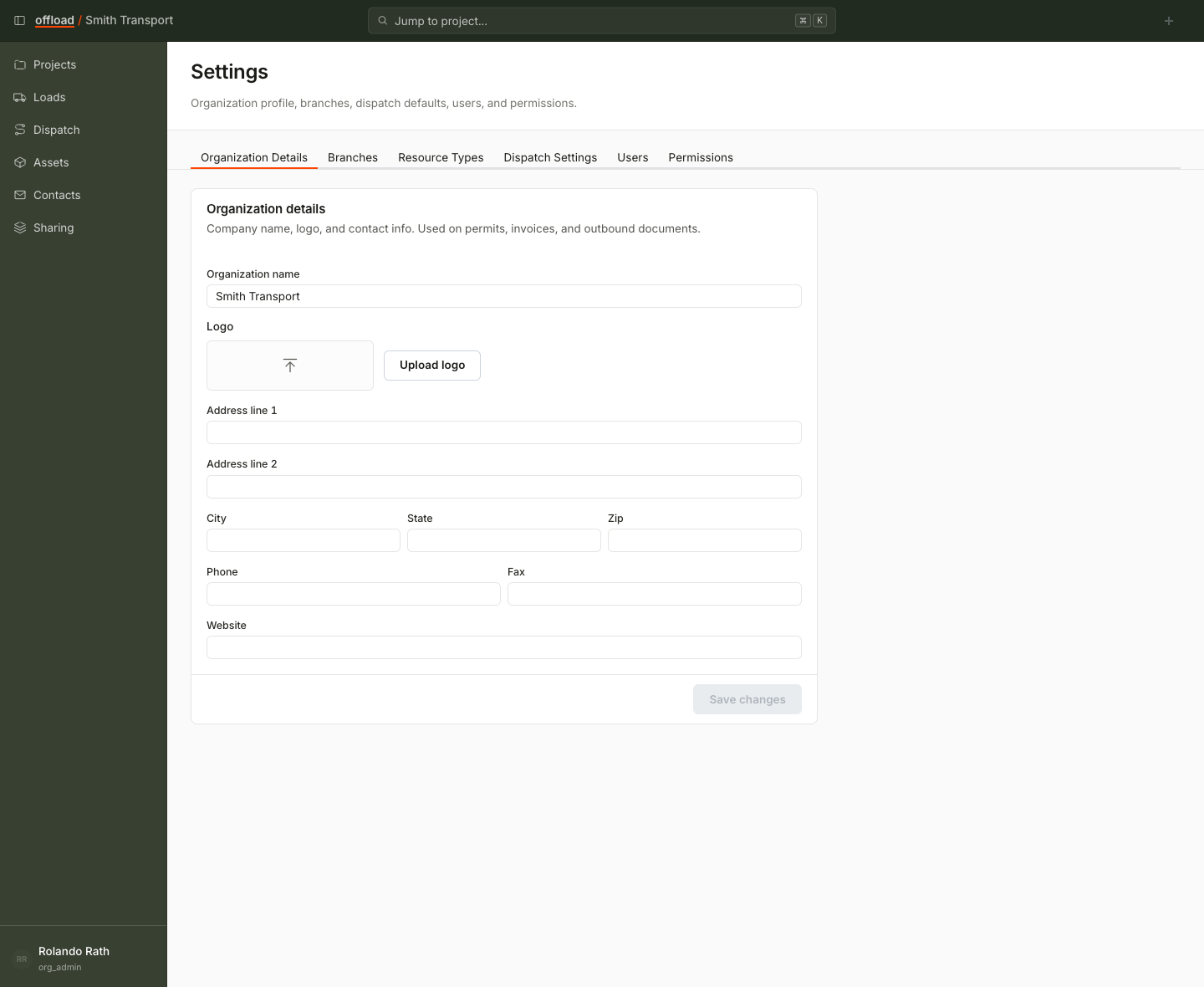
If you are the first user in your organization, you set up the company profile once in Settings, on the Organization Details tab. The form holds the company name and contact details. There are no USDOT or insurance fields here, so you will not be blocked waiting on those.
The Organization Details form has these fields:
- Organization name
- Logo (a PNG, JPG, or GIF image)
- Address (line 1, line 2, city, state, zip)
- Phone
- Fax
- Website
This information appears on permits, invoices, and other documents Offload generates, so it is worth filling in before you start moving freight. Click Save changes when you are done.
If you are joining an existing organization, your admin has already done this and you are ready to go.
Below is the Organization Details tab where the first admin enters the company profile.
Adding your team
An Org Admin manages internal team members from Settings, on the Users tab. Click Add to open the person form, then enter the teammate's name and email. The same form has an Invite as user option so you can send their app invitation in the same step (see Invite users & download the app for the full walkthrough).
People who have been added but not yet invited show a Not invited status. Once you send an invitation, the status changes to Invited until they accept it and sign in, when it becomes Active.
When role-based access is turned on for your organization, you also pick the role each person gets on their first login. The role decides what they can see and change, so pick the one that matches what the person actually does (see Roles & permissions). If role-based access is off, new users join as Org Admin.
Getting drivers on the app
Drivers do their work on the Offload mobile app, not the web app. After a driver accepts their invitation, they install the app from the App Store or Google Play and sign in with the same email the invite was sent to. The step-by-step for the driver is in Getting started (driver).
Each person must sign in with the exact email the invite was sent to. If they use a different email, Offload will not recognize them and their loads will not show up.
After onboarding
Once people are in, the work begins:
- The office creates loads and plans routes from the web app.
- Drivers pick up their assigned loads, scan permits, and follow the route from the mobile app.
Explore the Features section for guides on each capability.