Projects
A project is a job: the container that groups all the loads for one job site or contract in one place. It carries the customer, the branch, the project manager, the job number, its people and documents, and a set of default job-site locations you can quick-pick when setting locations on its loads and site work.
New here? Two playbooks cover the common work: Organize a project walks creating a job and breaking it into site work phases, and Set up job numbering shows an admin how to auto-number new jobs. Common questions live in the Projects FAQ.
How it works
A project moves from a first draft to a tracked job in a few steps:
- 1
Create the job
Make a project and fill in its details: customer, branch, project manager, a job number, a color, and default job-site locations. - 2
Organize its loads
Add loads to the project (or create the project inline while adding loads). Every load belongs to a project. - 3
Break it into site work (optional)
If your organization has the Site work feature enabled, split the job into site work phases, each with its own site, dates, and crew and equipment requirements. - 4
Track it on the workspace
Use the Projects workspace to filter, group, and sort your jobs, and watch their load counts and statuses.
What a project holds
Each project gathers one job's details in one record:
- Customer (optional) - the company the job is for.
- Branch - the branch or location that owns the job.
- Project manager - the person accountable for the job.
- Job number (Project ID) - the identifier you see in documents and spoken references. Offload can fill this in for you (see Job numbering below).
- Job status - where the job stands as a piece of business: Planning, Active, Completed, or Canceled (see Job status below).
- Color - a quick visual tag for the job across the app.
- Description - free text about the job.
- Default job-site locations - a default pickup and dropoff saved on the project. They are not forced onto loads. Instead they show up as quick picks in the location picker when you set locations on the project's loads and site work phases, so you don't retype them (see Creating a load).
Job status
Every job carries its own status: Planning, Active, Completed, or Canceled. This is the business state of the job, set by you.
- Change it inline from the status control next to the job's name on the project page, or filter and group by it on the workspace.
- It's separate from Load status, which rolls up from the job's loads (a job can be Active while all its loads are still in planning). The workspace shows both columns side by side.
The Projects workspace
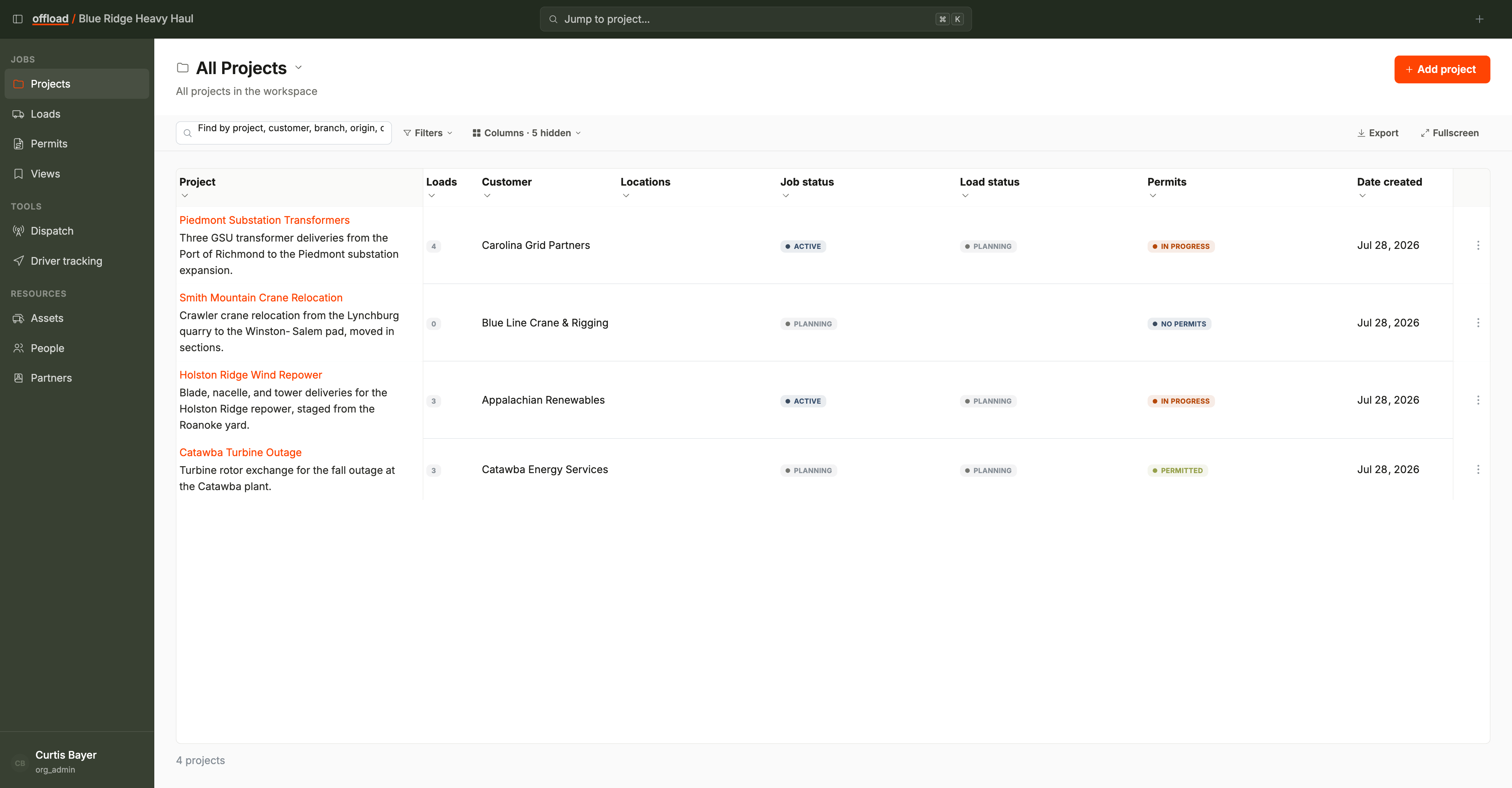
The Projects page (/projects) lists all your jobs with their load counts, customers, locations, job status, load status, and permit rollups.
The page is a Saved Views workspace. That means you can filter, group, sort, choose columns, export to CSV, and save the shape as a view you can switch back to any time. See Saved Views for the full set of tools, and Build and save a view for the step-by-step.
Two column notes:
- Job status and Load status are separate columns; quick-filter chips for Job status and Customer sit above the table by default.
- Organizations that use bulk import can turn on a Source column marking each job Imported or Hand-entered. Editing an imported job shows a quick confirmation first, since imported records usually mirror another system.
Project members
Project members are the people associated with a job. This is about access, not work assignment.
- The project manager is the single person accountable for the job. If they have an Offload login, being the project manager grants them manage access to the project and its loads.
- Members are the other people you add to the job. Adding someone records their association with the project. If they have an Offload login, membership grants them read-only access to the project and its loads. It never changes their organization role, and never takes away access they already have. A contact with no login is recorded but gets no access.
Project members are about who can see or manage the job. Crew is a different thing: it's the workers a site work phase needs, declared as a requirement and assigned per day on the Dispatch board. Someone can be crew on a phase without being a project member, and the other way around.
The people on a project automatically appear on every load under it, marked with a "Project" tag and read-only there, so you manage them once on the job instead of load by load.
Project documents
Documents you attach to a project belong to the whole job. Like members, a project's documents automatically appear on every load under it, marked with a "Project" tag ("Inherited from the parent project"). They're read-only on the load and managed on the project, so one upload covers every load in the job.
Site work
If your organization has the Site work feature enabled, a job can be broken into site work phases, where each phase is one unit of site work. A phase carries its own site, target dates, and its crew and equipment requirements (including the mobilization and demobilization loads that bring equipment in and take it out).
A job with no phases is a loads-only job, which is perfectly normal. For what a phase is, what it requires, and how to manage site work on the project page, see Site work and phases.
Site work is a premium feature. This page describes what you see when the Site work feature is enabled for your organization. If it isn't, every job is a loads-only job with no site work table.
Job numbering
Every project has a job number (its Project ID). If your organization has job numbering enabled, Offload fills in the next number for you on every new project, following a pattern your admin sets once.
- The Create Project modal shows the next number as a fixed chip in the Project ID field, with room for an optional suffix. Leave the suffix empty to let Offload assign the next number, or type a suffix to append to it.
- An admin configures the pattern in Settings, Numbering. See Set up job numbering for the full setup.
- Create follow-up job numbers a separately-billable extension of an existing job as
{parent}-1,{parent}-2, and so on. This action is available to every organization, whether or not numbering is configured.
Loads live in projects
Every load belongs to a project. The project is the wrapper that ties a customer, a job number, and a set of loads together. To work with the loads themselves (creating them, their routes, permits, and statuses), see Load management.