Site work and phases
A phase is one unit of site work inside a job. Breaking a job into phases lets you plan each stage of the work on its own, with its own site, its own dates, and its own crew and equipment. This page is the reference for what a phase is, what it requires, and how to manage phases on the project page.
Site work is a premium feature. This page describes what you see when the Site work feature is enabled for your organization. If it isn't, every job is a loads-only job (see below) and there's no site work table. To turn Site work on, contact support@letsoffload.com.
New to projects? Start with Projects for what a job is, or Organize a project for the step-by-step of creating a job and adding phases.
What a phase is
Think of a job as the whole contract and a phase as one stage of the work on the ground. A crane job might have a "mobilize crane," an "erect steel," and a "demobilize crane" phase. Each phase is scheduled and staffed on its own.
Every phase carries:
- A site - the origin and destination (the job-site location) for that stage of work.
- Target start and end dates - when the phase is planned to run.
- Crew requirements - how many of what crew type the phase needs.
- Equipment requirements - what equipment the phase needs on site, including the mobilization and demobilization loads that get it there and back.
What a phase requires
A phase declares two families of requirements. They're declared the same way (a type and a quantity) but they're fulfilled differently, which is why the editor splits them into two sections.
Crew requirements
Crew is fulfilled per scheduled day. A requirement like "2 crane operators" means every day the phase is scheduled needs 2 crane operators assigned. Declaring the requirement here just says what each scheduled day needs.
Crew is the workers a phase needs on the ground. It is not the same as a job's project members, who are the people with access to the job. A person can be crew on a phase without being a project member, and the other way around.
Equipment requirements (mob/demob)
Equipment is fulfilled by presence on site, not per day. A requirement like "1 350-ton crane" means that asset has to be on site for the phase, gotten there and kept there.
That happens through mobilization and demobilization loads (mob/demob):
- A mob load brings the asset to the site.
- A demob load takes it back out.
- Offload works out whether the asset is on site from those loads.
Declaring the requirement here just says what has to be on site.
Mob and demob loads are addressed to the phase itself, so their origin or destination follows the phase's job site. Change the phase's site and its mob/demob loads point at the new one, on the project's load list, the Loads page, and exports alike.
Declaring a phase's crew and equipment requirements is planning, not assignment. You schedule phases onto dates and assign real people and equipment on the Dispatch board, which is a separate step. For exactly how each family gets fulfilled there (and how scheduled dates stay linked to these requirements), see Requirements & fulfillment.
Loads-only jobs
A job doesn't have to have phases. A job with no phases is a loads-only job: it's just its loads, with no site work stages layered on top. This is normal and common. Add phases only when you want to plan the job in distinct work stages. A job can have as many phases as the work needs.
Managing phases on the project page
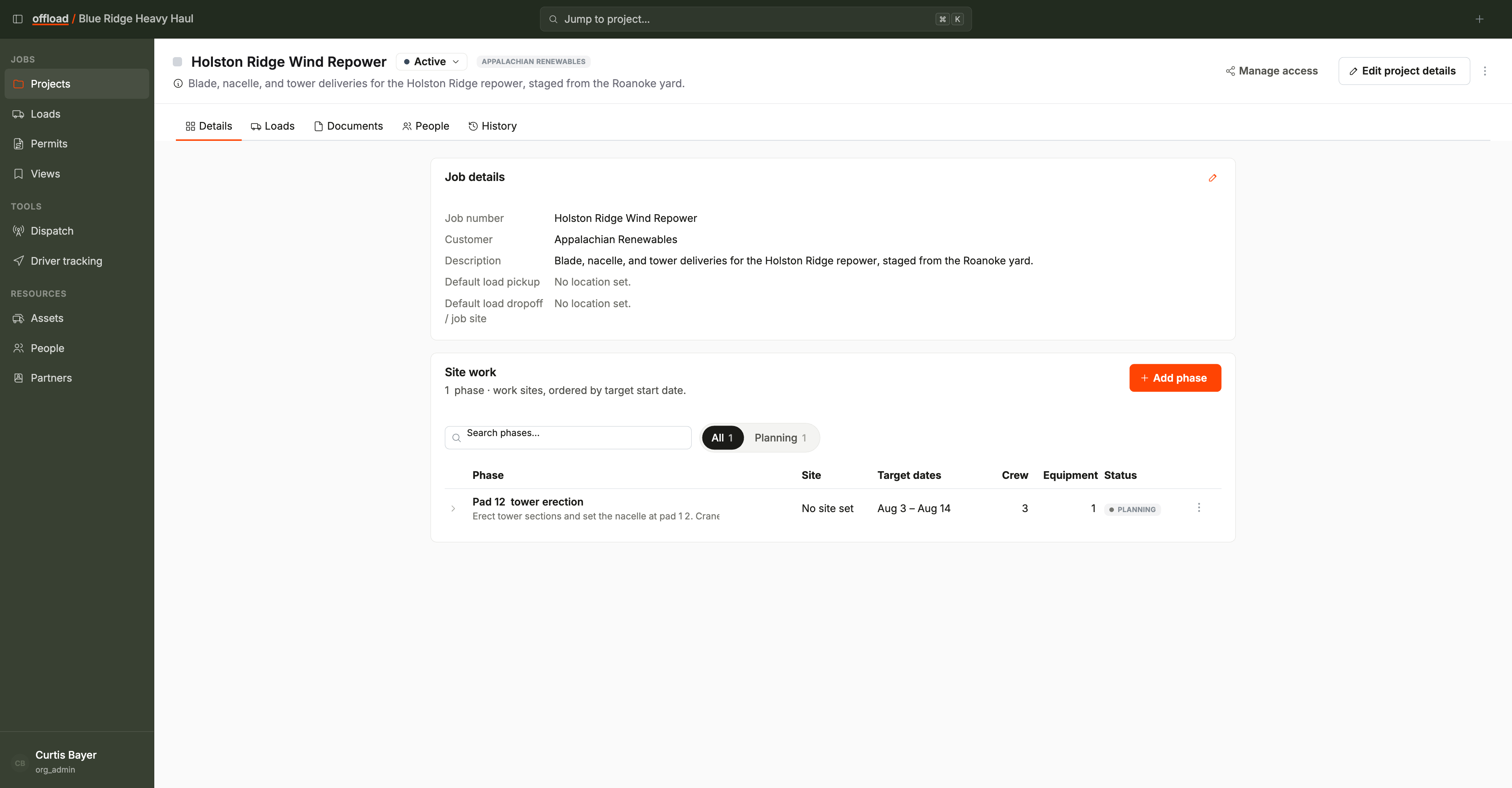
Open a project and its phases show in a Phases table. Each row is one phase or one standalone load, ordered by date. (Mob and demob loads belong to a phase, so they show through that phase rather than as their own rows.)
- Search and filter - a search box narrows the table by name, and a status filter lets you show any combination of statuses at once, with a count on each.
- What each row shows - a type icon (phase or load), the name (with a short description or its commodities beneath), the site or route, the target or scheduled dates, and a status pill.
- Open a row - click a phase to open its editor panel, which shows the phase's details and its requirements' fulfillment grid; mob and demob tokens in that grid open the load they point to. Click a standalone load to open the load's detail drawer.
- Add - "Add phase" opens a menu to add either a load or a sitework phase.
- Edit and remove - open a phase to edit its details and requirements in place. The row's menu (and the editor's) removes a phase, with a confirmation that shows what the removal affects.
Whether you can add, edit, or remove phases depends on your access. Someone with read-only access to the job (for example, a project manager reviewing it) sees the table and each phase's details, but not the add, edit, or remove controls.
Scheduling and assigning happens on Dispatch
This page covers what a phase is and what it needs. Scheduling phases onto specific dates and assigning real crew and equipment to fulfill their requirements happens on the Dispatch board, not here. See the Dispatch guides for that workflow.