The board
The dispatch board shows your date range as rows of cards: one card per job per day, with crew cards inside. This page is the reference for the board's layout and toolbar.
Layout
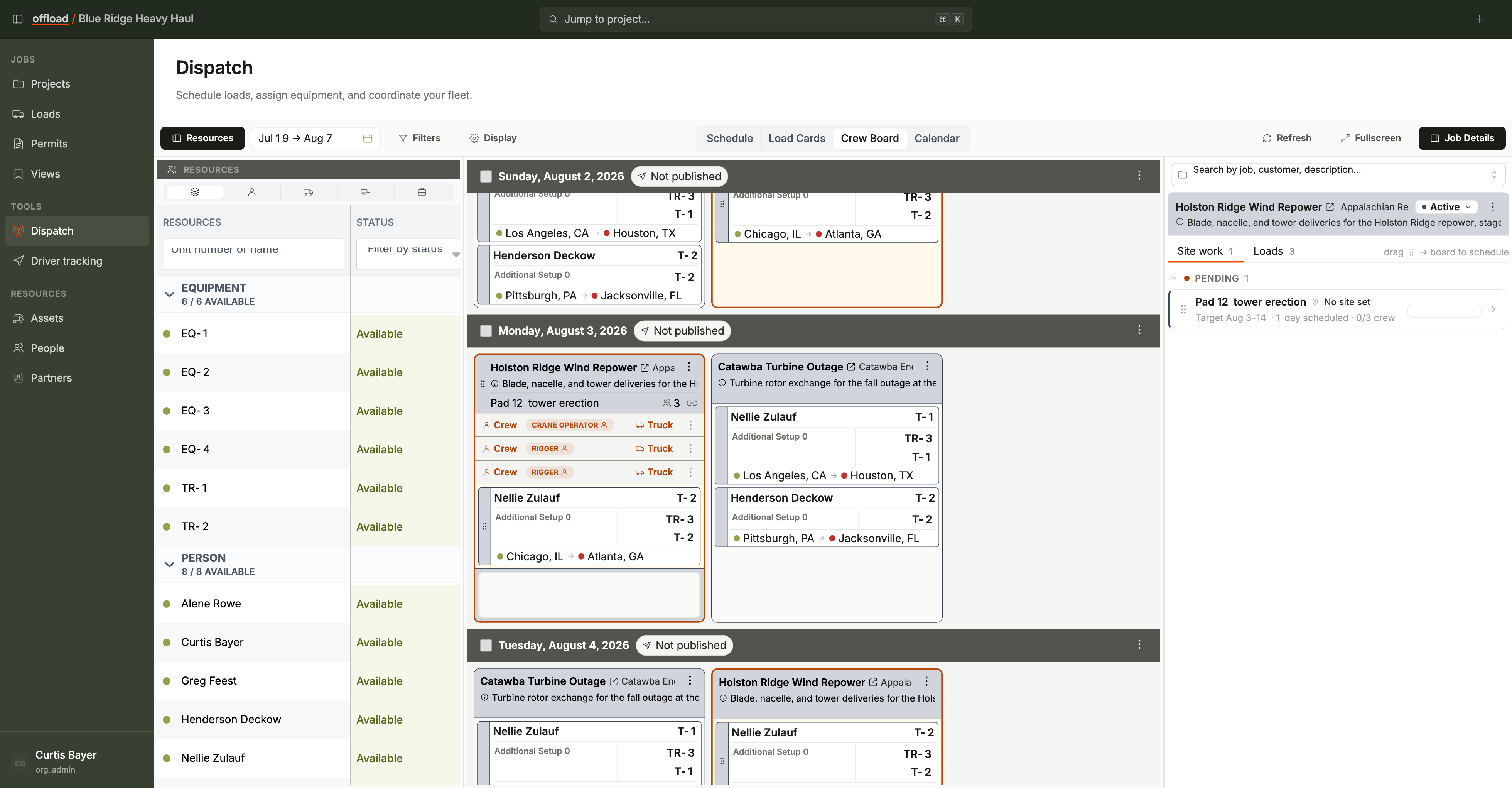
- Date rows run down the middle. Each row holds the job cards scheduled that day, in the order they will print.
- The Resources rail (left) lists your people, trucks, trailers, and equipment with their status and location. Toggle it with the Resources button.
- The Job Details panel (right) is where you find work to schedule: search for a job to see its Site work and Loads tabs, then drag onto the board. Toggle it with the Job Details button.
The Resources rail follows your selected date
The rail answers "who is free, and where are they" for a moment in time, and the moment depends on your selection:
- No date selected - status and location are as of now: what each resource is doing at this moment.
- A date selected (click a date row's header to select it; click again to deselect) - the rail re-evaluates and shows each resource's status and location for that day: who will be free, dispatched, on site, or out on that date.
Select the day you are planning before you assign, and the rail becomes that day's roster instead of today's.
Availability blocks and conflict warnings
Time off, maintenance, and other availability blocks entered on the Assets and People availability grids surface on the board in three ways:
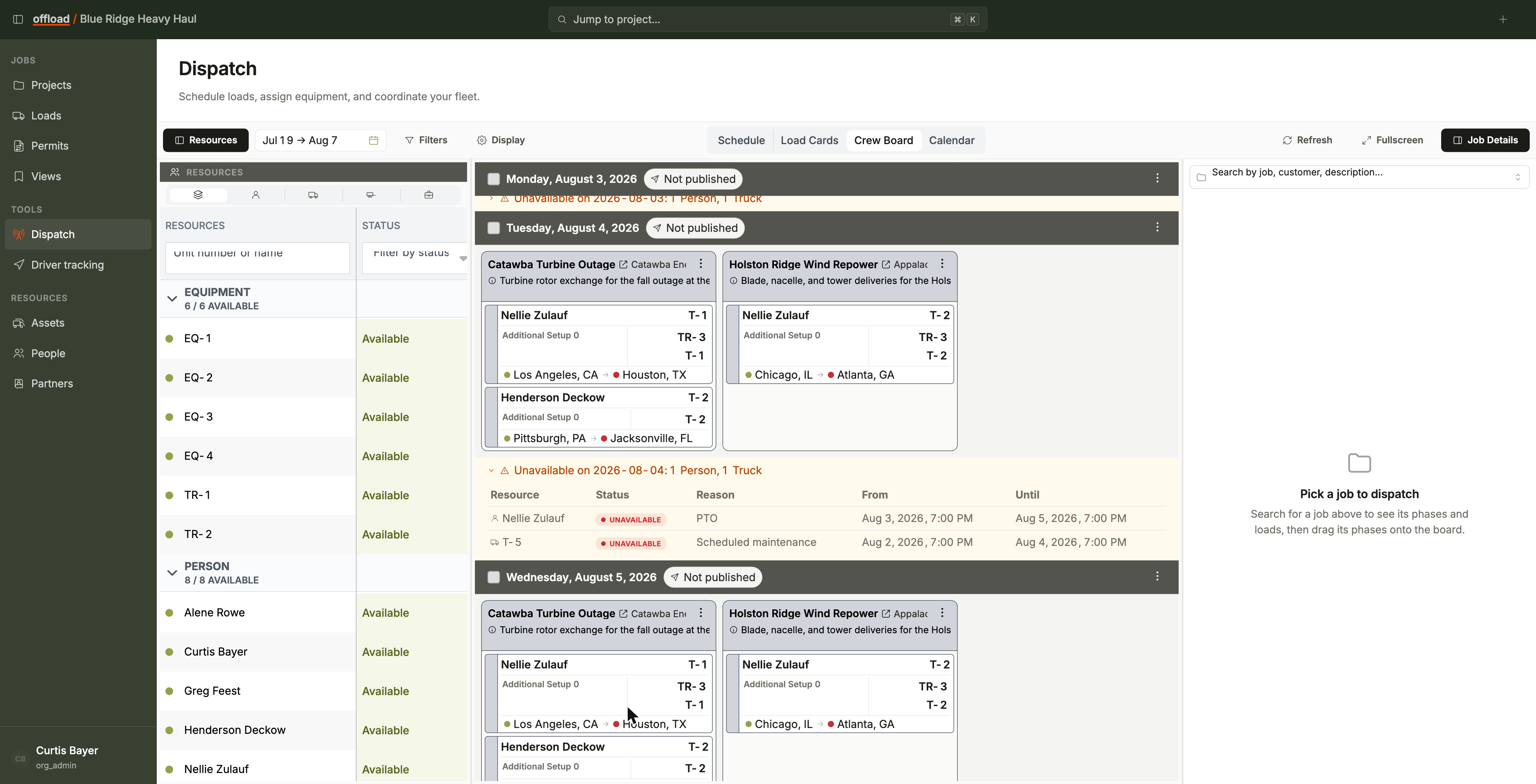
- The date row footer - an amber strip under a date row summarizing every resource with a block that day ("2 people, 1 truck"). Expand it for the full list: each resource with its status (Unavailable, Inactive, or Terminated), the reason, and the block's date range. It's the day's do-not-book reference; it only appears when something is blocked.
- Booked despite a block - if a person or asset is assigned on a day an availability block covers, their tag on the crew card turns red, with the block's details in the tooltip. Fix it by swapping the resource or clearing the block.
- Double-booked people - a person holding more than one crew slot on the same day gets an amber tag reading "Double-booked on this date". This warning is for people only; physical assets don't get it.
Toolbar
Left to right:
- Resources - show or hide the Resources rail.
- Date Range - the days on the board, with presets like Today, This week, and Next week. Arrow buttons shift the whole range earlier or later.
- Filters - opens a panel of branch chips so the board only shows the branches you work. The button shows how many filters are active.
- Display - board display options (see below).
- Refresh - reloads the board. The icon doubles as a sync indicator: a spinner while loading, a green check on success, and the last-refreshed time in the tooltip.
- Fullscreen - hides the page header so the board fills the screen.
- Job Details - show or hide the right panel.
Display options
The Display button opens the board display popover:
- Card width - five steps from Tight to Widest.
- Board zoom - 70% to 130%.
- Date row overflow - Scroll keeps each date on one scrolling row; Wrap lets cards flow onto multiple lines.
Your choices persist on this device. Reset puts everything back to default. Printing always uses the default display, so these options never change your printed sheets.
Date rows
Each date header carries:
- A checkbox that selects everything on the date.
- The date's menu (the kebab): toggle edit mode, add new jobs or loads, schedule existing loads (opens the Job Details panel), and Print / Export to PDF.
- If Publish Dispatch is enabled for your organization (currently in beta), a per-branch publish chip showing whether the day's plan has been published.
The Job Details panel
The right panel is the bridge between jobs and the board: search for a job ("Search by job, customer, description...") and it opens with a header and two tabs. Drag its edge to resize it; double-click the edge to close it.
The header shows the job's name (linking to the job page), customer, and description, its job status as an inline control, and the job's menu.
The Site work tab lists the job's phases, grouped by status. Each phase card carries:
- The phase name and its job site (or "No site set").
- Target dates, how many days are scheduled so far, and crew fulfillment (such as 0/3 crew).
- A status control, a drag grip ("Drag onto a board date to schedule"), and a chevron into the phase's detail.
Open a phase and the panel shows its schedule grid: the day-by-day picture of crew and equipment fulfillment. The grid and the board stay in step: click a phase card on the board and its grid opens in the panel; click a day column in the grid and the board scrolls to that date and selects it (so the Resources rail follows). The full grid reference is on Requirements & fulfillment.
The Loads tab lists the job's loads, ready to drag onto dates. An Unscheduled loads section collects loads that aren't on any date in your range, so nothing hides off-screen. Selecting a load scrolls the board to the first date it's scheduled on.
Job cards
A job card shows the job's name, customer, and description, with its crew cards inside. The card menu carries the day-to-day actions: edit job details, add loads, edit the card's notes and requirements, copy the card to other dates, unassign all crew, unschedule the day's loads, and remove the card.
Scheduled site work appears as the same kind of card, with crew slots created from the phase's requirements. See Scheduling for how phases land on the board.
The Schedule, Load Cards, and Calendar tabs above the board are being retired. The board described here (the crew view) is the one moving forward; the Calendar tab's job is now done by the Availability tabs on Assets and People.