🚀 Driver Tracking, Digital eDocuments & Dispatch Power-Ups
Released: March 2026
Dear Offloaders,
This is a big one. This update covers everything we’ve shipped since early February, spanning versions 1.36 through 1.41. Highlights include real-time driver tracking with off-route alerts, a new digital eDocument signing workflow, additional equipment support, saved locations for your branches and customers, and a smarter OD Assistant. We also packed in dozens of dispatch, mobile, and routing improvements.
Many of these updates were made possible thanks to customer feedback and collaboration. Reply with questions or let us know how these changes are working for you.
Happy Hauling, Eric
🎯 Top 3 This Release
- Driver Tracking - Watch your drivers in real time on a live map with off-route detection, stop-reason logging, and instant SMS/email alerts when a driver leaves the permitted route.
- Digital eDocuments - Generate, assign, and collect e-signatures on Bills of Lading and other documents with a multi-party signing workflow across web and mobile.
- Saved Locations - Save addresses to your branches and customers, then reuse them across loads and projects with a searchable dropdown — no more retyping the same addresses.
Read on for full details ⬇️
Driver Tracking
Dispatchers can now monitor drivers in real time from a dedicated Driver Tracking page.
- A live map shows each active driver’s position, colored by status: green (on route), red (off route), or yellow (rest/fuel stop).
- Driven path segments are rendered on the map so you can see exactly where a driver has been and where they deviated.
- When a driver goes off route, they can tap “Rest Stop” or “Fuel Stop” to log a reason, or call dispatch directly from the alert overlay.
- SMS and email alerts notify dispatchers the moment a driver leaves the permitted route or reports a stop.
- Alerts are configurable per user from the Driver Tracking settings panel, including a quick “Update My Info” modal to set your phone number for SMS.
- Toggle permitted routes on and off for any active driver directly from the tracking sidebar. Route overlays render as dashed lines on the map so you can compare a driver’s actual path against their permitted route at a glance.
- Load IDs in the driver list and map popups are now clickable links that open the full load detail page in a new tab.

Digital eDocuments
A new end-to-end document signing workflow lets you generate, assign, and collect e-signatures on load documents — starting with Bills of Lading.
- Create an eDocument from the load’s Documents tab by selecting a template and mapping signer roles (Driver, Consignee, etc.) to people on the load.
- Load data (origin, destination, commodities, equipment) is pre-filled automatically so you don’t have to retype it.
- Dispatchers review and confirm first on the web, then drivers sign on the mobile app (or hand the device to the shipper/consignee for in-person signing).
- Completed documents are stored as signed PDFs and linked back to the load.
- Status tracking shows which signers have completed and who’s next in the sequence.
Saved Locations
Address entry across Offload now supports saved locations — reusable addresses tied to your customers and branches. Instead of retyping the same pickup and dropoff addresses on every load, you can save them once and select them instantly from a searchable dropdown.
Branch Locations
- Each branch company in your organization can have a yard location. Branch yards appear automatically as saved locations when creating or editing loads, routes, and projects.
- In the dispatcher, loads going to or from a branch yard now show the branch name instead of the full address for a cleaner, at-a-glance view.
- Add or edit branch locations from Settings → Branch Companies. Each branch has a dedicated yard address managed through the same address picker used throughout the app.
Company (Customer) Locations
- When entering an address on a load or project, you can save it directly to the customer with a single click.
- Click “Save to [Customer Name]” beneath any newly entered address, give it a name (e.g. “Springfield Factory”), and it’s saved for future use.
- The next time you create a load for that customer, the saved location appears in the dropdown — no retyping required.
Consistent Location Display
- Location display names are now resolved consistently across the dispatcher, resource status views, and load details.
- Saved locations show their custom name (e.g. “Springfield Factory”) everywhere they appear, so your team always sees the same label regardless of where they’re looking.
Smart Contextual Search
- The address picker shows the most relevant locations first based on what you’re working on.
- On a load, you’ll see the project’s origin/destination, branch yard, and customer saved locations.
- On a project, you’ll see the selected customer’s and branch’s saved locations.
- Saved locations are grouped separately from new address results, with color-coded badges (Branch, Project, Load, or customer name) so you can tell at a glance where each address comes from.
Digital Dispatch
Create Mob/Demob Loads from the Crew Board
- You can now drag commodity requirements from the project equipment manifest directly onto crew cards to create mob/demob loads in one step.
- Drop a commodity-requirement onto any crew card to instantly generate a load with the correct setup.
- Drop commodity-requirements onto existing loads to mob/demob multiple assets together.
- No more switching between views to create and assign loads — do it all from the Crew Board.
Resource Status Scheduler Improvements
- Managing planned availability is now smoother and more intuitive.
- Edit existing status events directly from the right-click menu — no need to delete and recreate.
- Add new status events via right-click on any schedule cell.
- Deletion now uses a proper confirmation modal instead of the browser’s default confirm dialog.
Additional Equipment (forklifts, cranes, generators, etc.) is now a full asset type alongside trucks and trailers.
- Add and manage equipment from the Assets page, just like trucks and trailers.
- Assign equipment to loads via a new “Additional Equipment” section on the load truck card.
- Equipment appears in the dispatcher scheduler, equipment manifest, and resource status views.
- Drag and drop equipment onto crew cards and project dispatch cards for quick assignment.
Copy Dispatch Templates Between Projects
- When copying a project, the dispatch template is automatically copied over in addition to the project’s loads.
- Resource type requirements carry over so your new project starts with the same crew structure.
- Saves time on repetitive project setups with similar staffing needs.
Equipment & Load Selection
- Selecting a load in the dispatcher now highlights all equipment setups for that load, not just the individual truck you clicked on.
- Resources are grouped by role when filtering by “Person” in the dispatcher, making it easier to see crew assignments at a glance.
- Equipment manifest layout improvements provide better horizontal scrolling and content display.
Permits & Routing
Web
- Fixed an issue where points of interest (POIs) could not be placed or edited within the permit review modal.
- POI form interactions now work correctly when reviewing permit details on the map.
- Route reprocessing allows you to recalculate intersections and jurisdiction data when a permit route changes.
- “Utility” and “Certified” escort types are now available when setting up permit escorts.
- Copying a load now includes permits, curfews, escorts, documents, and route jurisdictions — not just the load itself.
- Address lookup now rejects coordinates outside the US, and loads clearly show “No Origin” or “No Destination” when locations are missing instead of falling back to project defaults.
Mobile
Scan to Create a New Load
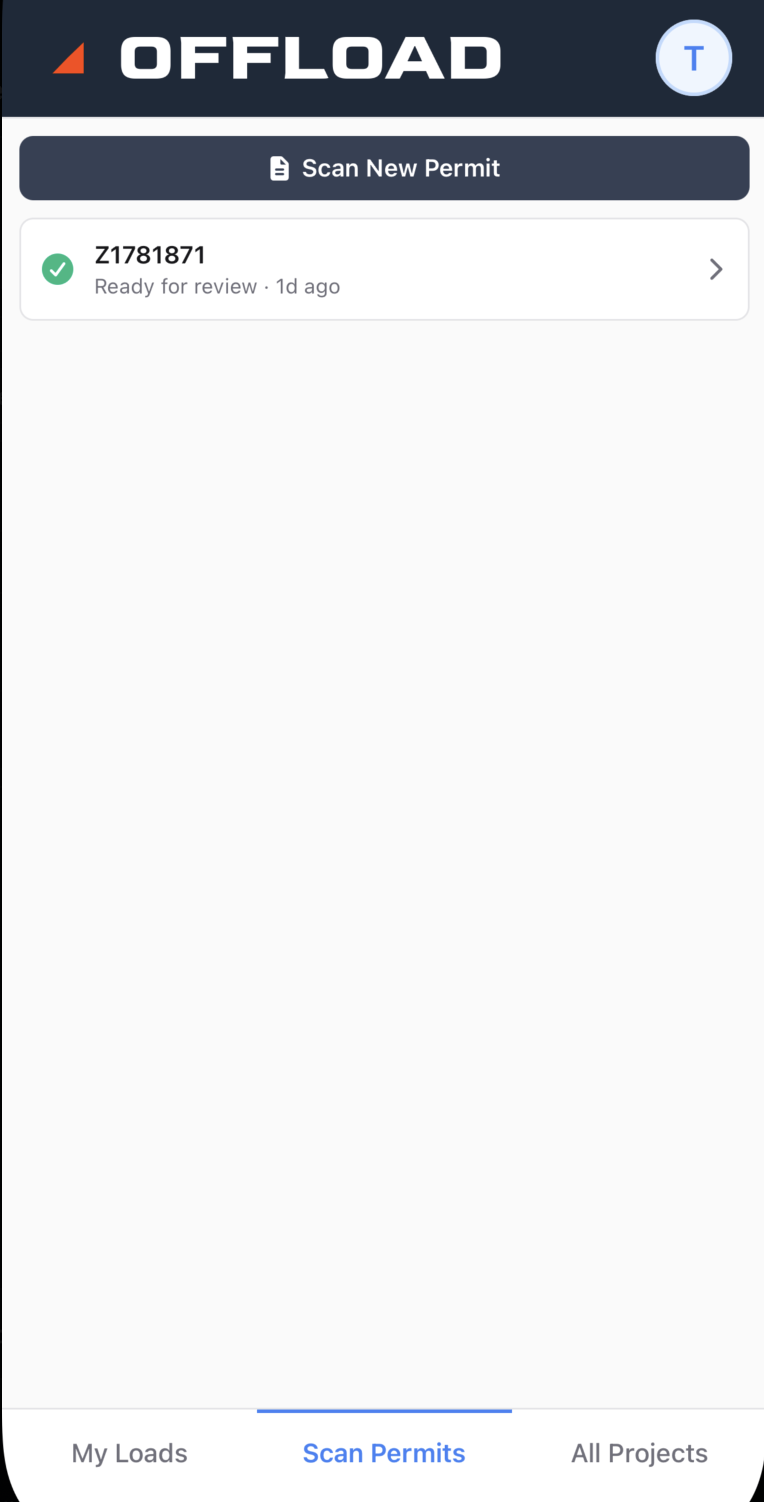
You can now scan a permit directly from the mobile home screen to create a new project and load in one step — no need to set up a load first.
- A dedicated “Scan Permits” tab on the home screen gives you quick access to start a new scan and track all in-progress scans in one place.
- Close the app or navigate away while a scan is processing and pick it back up later. In-progress scans show real-time status (processing, ready for review, or failed) with relative timestamps.
- Failed scans can be retried or dismissed directly from the home screen.
- You can also scan a new permit from within an existing load’s Routes & Permits tab to add a permit to a load that’s already been created.
- Load numbers are auto-generated when creating from a scan, keeping numbering consistent with loads created from the web.
Tablet Permit Review
Permit review on tablets received a major upgrade with a new split-screen view and streamlined route editing.
- Split-screen permit review — On tablets, tap “Show Permit” while on the Route tab to view the permit PDF side-by-side with the route map. The layout adapts automatically to landscape (horizontal split) and portrait (vertical split) orientations.

- Improved route segment editing — The insert segment modal now slides in as an overlay instead of a full-screen modal, keeping the map visible. It defaults to the current step and supports inserting segments without a description for quick waypoint additions.
- Route confirmation warnings — Confirming a route now warns you if any segments with waypoints haven’t been verified yet, giving you a chance to review before finalizing.
- Serial number scanner upgrade — The equipment serial number scanner now uses server-side OCR (AWS Textract) instead of on-device text recognition, improving accuracy when scanning equipment plates.
- GPS accuracy indicator — A signal-quality pill replaces the old banner during navigation. When GPS accuracy is poor, voice announcements pause and the map switches to a direction-list view to avoid misleading guidance.
- Fixed POIs (e.g. curfews) being announced multiple times during voice navigation.
- Curfews starting at the same location are now grouped (e.g. “3 curfews on Kentucky State”) instead of listed individually.
OD Assistant
The permit manual assistant received a major upgrade to how it finds and presents answers.
- The assistant now uses an agentic tool-calling architecture, searching permit manuals multiple times per question for more thorough answers.
- Route-based queries — Ask “What are the requirements for hauling from Houston to Phoenix?” and the assistant infers the states along the route (TX → NM → AZ), looks up each state’s requirements, and presents them in route order.
- Upgraded to GPT-5.4 for improved reasoning and instruction-following.
- Answers are now shorter, more actionable, and written for dispatchers and permit coordinators. Tables are used for dimensions, fees, and limits. Important values are bolded.
- Citations are consistently formatted and clickable, linking directly to the right pages in the source permit manual.
- Large permit documents are now chunked more reliably, preventing failures when documents exceed embedding token limits.
Other Fixes and Enhancements
- Load numbers are now auto-generated consistently across all load creation workflows, using incremental numbering within the load’s project.
- Phone numbers are now validated and normalized to E.164 format, fixing SMS delivery failures for escort personnel notifications.
- Dialogs no longer close when clicking outside, reducing accidental data loss on complex forms.
- Load date utilities extracted to shared library for consistent date calculations across web and mobile.
- Fixed the My Loads endpoint to correctly identify loads based on all role types (person, driver, project manager, escort).
- The My Loads page now includes an “About” button that explains how loads appear in your personal view.
- Various curfew bug fixes for display, grouping, and timezone handling.
- Improved jurisdiction intersection calculations for permit routes.
As always, we’d love to hear your feedback on these updates. Reply to this email with questions or suggestions.